 TakumiForm
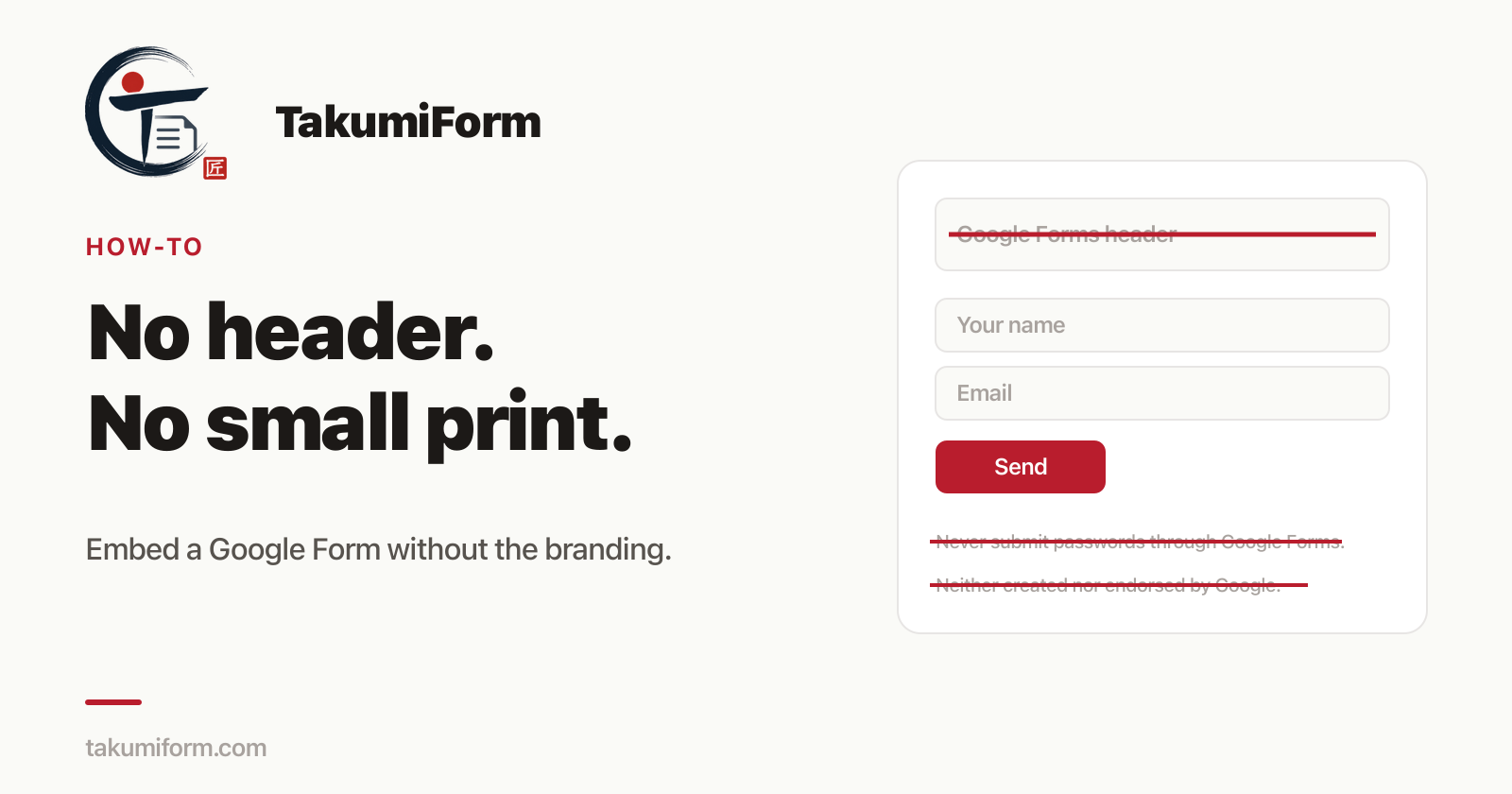
You paste Google’s embed code into your page, reload it, and there it is: a box in the middle of your site that looks nothing like your site. Someone asks you to “take the Google branding off it” and you go looking for the setting.
There isn’t one. You can recolour the header and swap the fonts inside Google Forms, but the two lines of small print at the bottom cannot be removed from a form Google serves, by any setting, any add-on, or any CSS trick. The only way to have none of it is to let something other than Google render the form, which is what TakumiForm does: your questions stay in Google Forms, the version on your site is yours. Checked against live Google Forms on 13 September 2026.
Here’s the full picture, including the bits people waste an afternoon on.
What does “the Google Forms header” actually mean?
When people ask how to remove the Google Forms header and branding, they usually mean some mix of four things:
- The coloured band at the top of the form, with your form title and description sitting in it.
- The look of the form itself: Google’s fonts, Google’s radio buttons, the purple submit button on the default theme, the
* Indicates required questionline. - The line under the submit button that reads “Never submit passwords through Google Forms.”
- The footer: “This content is neither created nor endorsed by Google.”, next to a Report abuse link.
Numbers 1 and 2 are yours to change, within limits. Numbers 3 and 4 are not.
What can you change inside Google Forms?
Open your form and click Customize theme (the paint palette, top right). You get:
- A header image. Google wants it at 1600 x 400. Upload your own and it suggests a matching accent colour.
- A theme colour and a background colour, including custom hex values.
- Text styles. Pick header, question or body text and change its font and size, from a curated list of Google Fonts. You can’t upload your own brand font.
That’s genuinely useful, and most people stop too early. Your own header image plus your own hex colours already moves the form a long way from the default purple. You can also leave the header image out entirely, which makes the top of the form a lot quieter.
What you can’t reach: the shape of the inputs, the spacing, the button style, the letter spacing, and the small print.
Does ?embedded=true remove the branding?
No, and this one catches everybody, because it looks like it should.
When you go to Send → < > and copy the iframe code, Google appends ?embedded=true to the form URL. It changes how the page is laid out for sitting inside an iframe, and that’s all. We fetched the same public form with and without the parameter and compared the HTML Google returns: the disclaimer, the Report abuse link, and the “Never submit passwords through Google Forms” line are present in both. The parameter never touches them.
One substitution does happen, automatically, and it’s the only branding change Google makes for you. If the form belongs to a Google Workspace account, the disclaimer is replaced by your organisation’s name: a university form we checked renders “This form was created inside [organisation name].” instead. Better than Google’s name on your page. Still a line of someone else’s small print on your page.
Why can’t you hide it with CSS?
Because the form isn’t on your site. It’s in an iframe pointing at docs.google.com, and browsers refuse to let one site’s stylesheet or script reach into another site’s document. That’s the rule that stops any random page from reading what you type into your bank’s login form, and there’s no opt-out. Your CSS stops at the edge of the box, which is why display: none on a class you found in DevTools does nothing at all.
The usual follow-up is to crop the iframe: make it shorter than the form and hide the overflow so the footer falls outside the visible area. On one screen width, with one set of answers, that works. On a phone, or the moment someone expands a longer question, you’ve clipped the submit button instead.
There’s also a genuine developer route: build your own HTML form, give each input the entry.XXXXXX name Google assigned to the matching question, and POST it to your form’s formResponse endpoint. Responses land in your Google Form and nothing on the page is Google’s. People have done this for years. The costs are real though: you hand-maintain the entry IDs, you lose Google’s answer validation, file upload questions can’t come along, and it quietly breaks the day someone edits the form on Google and the fields shift. If you’re not the person who’ll be fixing that at 11pm, it isn’t your answer.
How do I embed a Google Form with no header and no branding?
Have something else render it. TakumiForm reads your Google Form and serves its own version, so there’s no Google chrome to strip out in the first place.
- In your Google Form, go to Extensions → Add-ons → Get add-ons and install TakumiForm.
- Extensions → TakumiForm → Open TakumiForm, then Connect to TakumiForm and sign in with the account that owns the form.
- Click Customize. Set your colours, fonts, corner radius and button style, and rewrite the submit button label and thank-you message. Upload your logo and it reads your brand colours straight out of it.
- Copy the snippet from the Share tab and paste it into your page.
What lands on your page is your form, in your fonts and colours, sizing itself to its own content so there’s no inner scrollbar and no blank gap underneath. No header band, no disclaimer, no Report abuse link, no password warning, no Google font. Responses still arrive in your Google Form’s responses tab and its linked Sheet, and you keep editing questions on Google exactly as before.
Our own “Created with TakumiForm” footer only appears on expired or cancelled accounts. Any paid plan removes it, and so does the trial.
The embed guide covers the optional bits (lazy loading, reusable templates, what happens when you edit the form on Google). For the broader version of this, start with how to embed a Google Form on your website.
Where Formfacade is still the better pick
Formfacade solves this the same way we do, by rendering its own copy of your form, and it’s been doing it longer. If branding removal is genuinely the only thing you need, its Customize UI add-on is the cheaper entry point: $8/month billed annually, or $16 billed monthly, for 50 responses a month across 3 forms (from formfacade.com/website/pricing.html, checked 13 September 2026). That undercuts our $9/month Starter.
It also ships things we don’t: email notifications on submit, Sheets Lookup, and e-signature through Formesign. If any of those are load-bearing for you, we’re not the tool yet.
Where the arithmetic turns is when you want a second thing. Embedding on your own site is a separate subscription from Customize UI, with its own response cap, and file upload and quiz scoring are two more on top of that. We sell one plan with all of it in it. There’s a full breakdown in our Formfacade review and a tier-by-tier Formfacade vs TakumiForm, and our own numbers are on the pricing page.
Verdict: if all you’ll ever want is a restyled form and you’ll stay under 50 responses a month, Formfacade’s cheapest tier is the cheapest way there. For a form that also needs to live on your own site, take a file, or grow past a small monthly cap, TakumiForm is one subscription doing the work of two or three.
FAQ
Can I remove the Google Forms header without an add-on? You can change it, not remove it. Customize theme lets you set your own header image, theme colour, background colour and fonts, or drop the header image entirely. The form title block stays, and so do the two lines of small print at the bottom. To have none of it, the form has to be rendered by something other than Google, such as TakumiForm.
How do I get rid of “This content is neither created nor endorsed by Google”? There’s no way to remove it from a form Google serves. On a Google Workspace account, Google automatically swaps it for your organisation’s name. Otherwise you need a tool that renders your Google Form itself: TakumiForm does that, and its version of your form carries no Google footer at all while your questions and responses stay in Google Forms.
Does ?embedded=true remove the Google Forms branding?
No. It only changes the page layout for use inside an iframe. We compared the HTML Google returns with and without it on 13 September 2026, and the disclaimer, the Report abuse link and the password warning are identical in both.
Can I hide the branding with CSS on my own page? No. The form sits in a cross-origin iframe, so your stylesheet and your JavaScript can’t reach inside it. That’s a browser security rule, not a Google setting, and there’s no workaround for it.
Do I lose my Google Form if I use TakumiForm? No. It stays in Google Forms, you keep editing it there, and responses keep arriving in the responses tab and the linked Sheet. Turn TakumiForm off and your plain Google Form is still sitting there working.
Do respondents need a Google account? No. They open your page, fill the form in, and submit. No sign-in, no account picker.
Try it on the page that bothers you most
Take the one page where the embedded form looks most out of place, swap the code, and open it on your phone. That’s usually the moment it’s obvious. The 7-day trial needs no card.
Read more on the TakumiForm blog.